

Key Takeaways
Option A
Cloud Storage
The always-accessible, internet-dependent option.
Best for: People who want to reach their files from any device, anywhere, or who need to share files easily with others.
Option B
Local Storage
The offline, you-control-it choice.
Best for: People who prefer to keep files on their own device or external drive without relying on an internet connection.
If you frequently switch between devices or share files with others
Cloud Storage
Cloud storage lets you access the same file from your phone, tablet, or laptop instantly, and sharing requires only a link.
If you work in areas with unreliable internet or handle sensitive private files
Local Storage
Local files are available offline anytime, and you maintain complete control without depending on a third-party company's servers.
If you want a safety net against device failure or accidental deletion
Cloud Storage
Cloud services typically maintain automatic backups, so a broken or lost device doesn't mean lost files.
If you store very large media libraries and want to avoid subscription fees
Local Storage
External hard drives offer large capacities at a one-time cost, avoiding monthly cloud service fees for heavy storage needs.
What Actually Happens When You Save a File
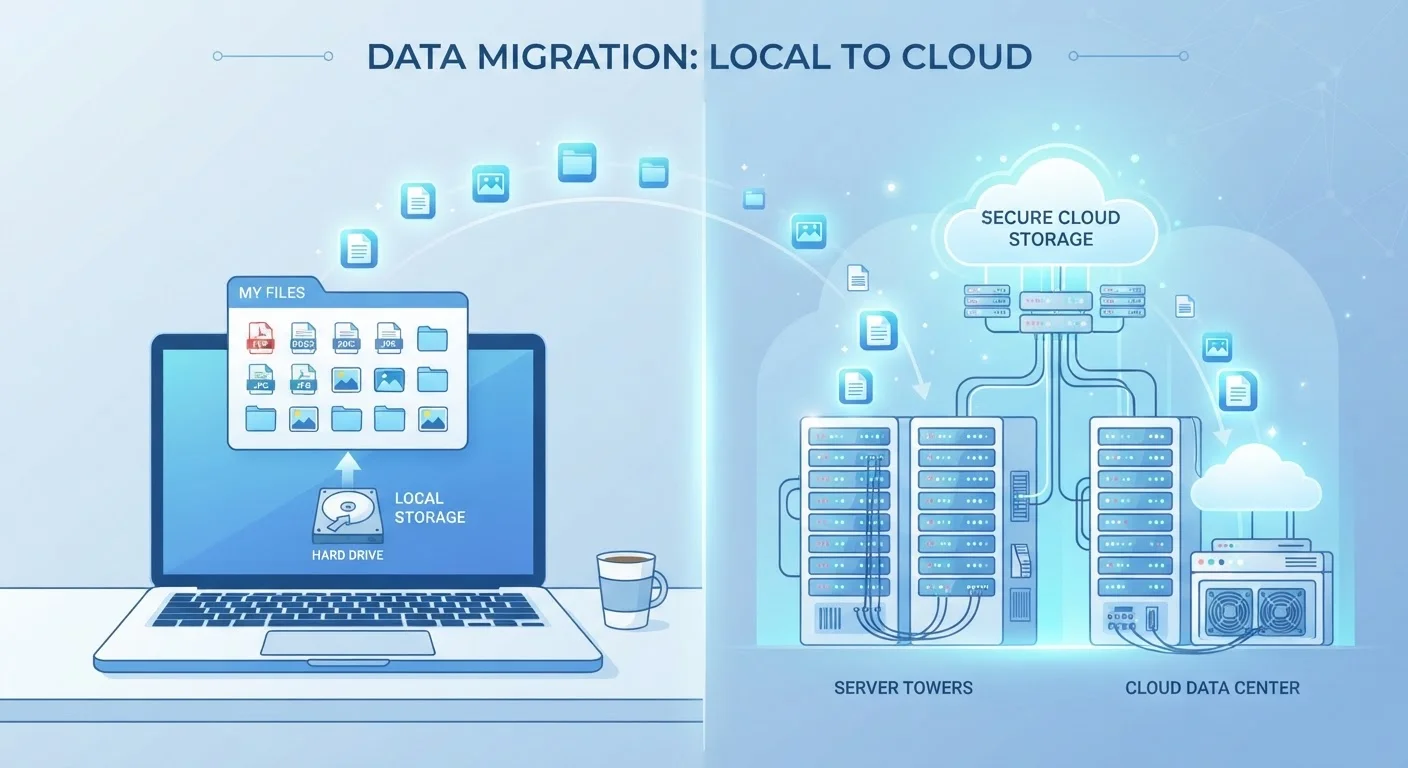
Every time you save a photo, document, or video, it has to physically live somewhere — on a chip, a disk, or a drive. The difference between cloud and local storage is simply where that physical location is.
With local storage, your file is written to hardware inside or directly connected to your device. That might be your laptop's internal solid-state drive (SSD), your phone's built-in memory, or an external hard drive plugged into your computer. The file stays there until you move or delete it. No internet required.
With cloud storage, your device sends a copy of the file over the internet to a company's data center — a warehouse full of servers maintained by that provider. Your device then shows you a representation of that file, but the original data sits on hardware owned by someone else, often hundreds of miles away.
For a deeper look at how cloud storage works under the hood, see Cloud Storage Explained: Where Your Files Actually Go.
How They Compare: A Side-by-Side Look
Understanding the practical trade-offs between these two storage types helps you choose the right one for each situation — or decide when to use both.
| Criterion | Cloud Storage | Local Storage |
|---|---|---|
| Where files are physically kept | Remote servers at a data center | Device hardware or external drive |
| Internet required to access | Yes, in most cases | No |
| Accessible from multiple devices | Yes, via any signed-in device | Only from the device it's saved on |
| Automatic backup | Often included by default | Only if you set it up manually |
| Ongoing cost | Often subscription-based beyond free tier | One-time hardware cost |
| Risk of loss | Account compromise or provider issue | Hardware failure, theft, or damage |
| Storage capacity control | Limited by plan tier | Limited only by hardware size |
One detail many people miss: when you open a cloud-stored file on your phone, your device often downloads a temporary copy. That copy lives briefly in local storage called cache (temporary data your device keeps for faster access). Once you close the file, it may be removed to free space. Learn more about cache and what your device stores in our breakdown of browser data.
Privacy, Security, and Who Controls Your Files
Control is one of the most important practical differences between the two approaches.
With local storage, you are the only one who determines access to your files. There's no account to hack, no server breach to worry about — but if your hard drive fails or your device is lost, those files may be gone permanently unless you've made a backup.
With cloud storage, your files are protected by the provider's security systems, which are typically robust. However, your access depends entirely on your account credentials. If your account is compromised — or if the provider experiences an outage — you may temporarily or permanently lose access. For tips on protecting accounts when you're away from home, Digital Security on the Road is worth reading.
The 3-2-1 Backup Principle
A widely referenced data protection guideline suggests keeping three copies of important files: two on different local devices and one stored offsite — which cloud storage fulfills naturally. This isn't a guarantee against all data loss, but it significantly reduces your exposure to any single point of failure. If your files truly matter to you, combining both storage types is worth considering.
Neither option is inherently safer. Local storage risks hardware failure; cloud storage risks account vulnerabilities and provider dependency. Using both as part of a layered approach is a common strategy.
When to Use Each — or Both
Most people don't need to choose one exclusively. A practical approach is to match the storage type to the file's purpose:
- Use cloud storage for files you need across multiple devices — work documents, photos you want to view on your phone and laptop, or anything you share regularly with others.
- Use local storage for large files that rarely change, sensitive personal records you prefer to keep private, or anything you need offline reliably.
- Use both together as a backup strategy: keep important files on your device and backed up to the cloud, so a single failure doesn't result in permanent loss.
If you're thinking about how this fits into your broader digital habits — including how you organize apps, files, and notifications — Organizing Your Digital Life offers practical next steps.