

Key Takeaways
Option A
HTTP
The original, unencrypted web protocol.
Best for: Understanding what the web looked like before encryption became standard — not recommended for any site handling personal data.
Option B
HTTPS
The secure, encrypted standard for modern web browsing.
Best for: Any website where you log in, shop, share personal information, or simply expect your activity to stay private.
If you're entering a password, payment details, or personal information
HTTPS
Encryption is essential here. On an HTTP site, that data travels in plain text and can be intercepted on the same network.
If you're trying to judge whether a site is legitimate or trustworthy
Neither alone
The padlock only confirms encryption, not honesty. Look for other trust signals: a recognizable domain, contact information, and verified reviews.
If you're on public Wi-Fi and browsing any site
HTTPS
Without HTTPS, anyone on the same network could potentially view your traffic. HTTPS significantly reduces that risk.
If you're a website owner deciding which protocol to use
HTTPS
Browsers actively warn users away from HTTP sites, and search engines generally treat HTTPS as a baseline expectation for modern sites.
What HTTP and HTTPS Actually Are
HTTP stands for Hypertext Transfer Protocol — the set of rules that governs how data moves between your browser and a website's server. Think of it as the language your browser and a website use to talk to each other. Every time you visit a page, your browser sends a request using this protocol and the server sends back a response.
HTTPS adds one critical layer: the S stands for Secure. It uses a technology called TLS (formerly SSL) to encrypt the data traveling in both directions. Encryption scrambles the information so that even if someone intercepts it mid-transit — say, on a public Wi-Fi network — they see only unintelligible characters rather than readable content.
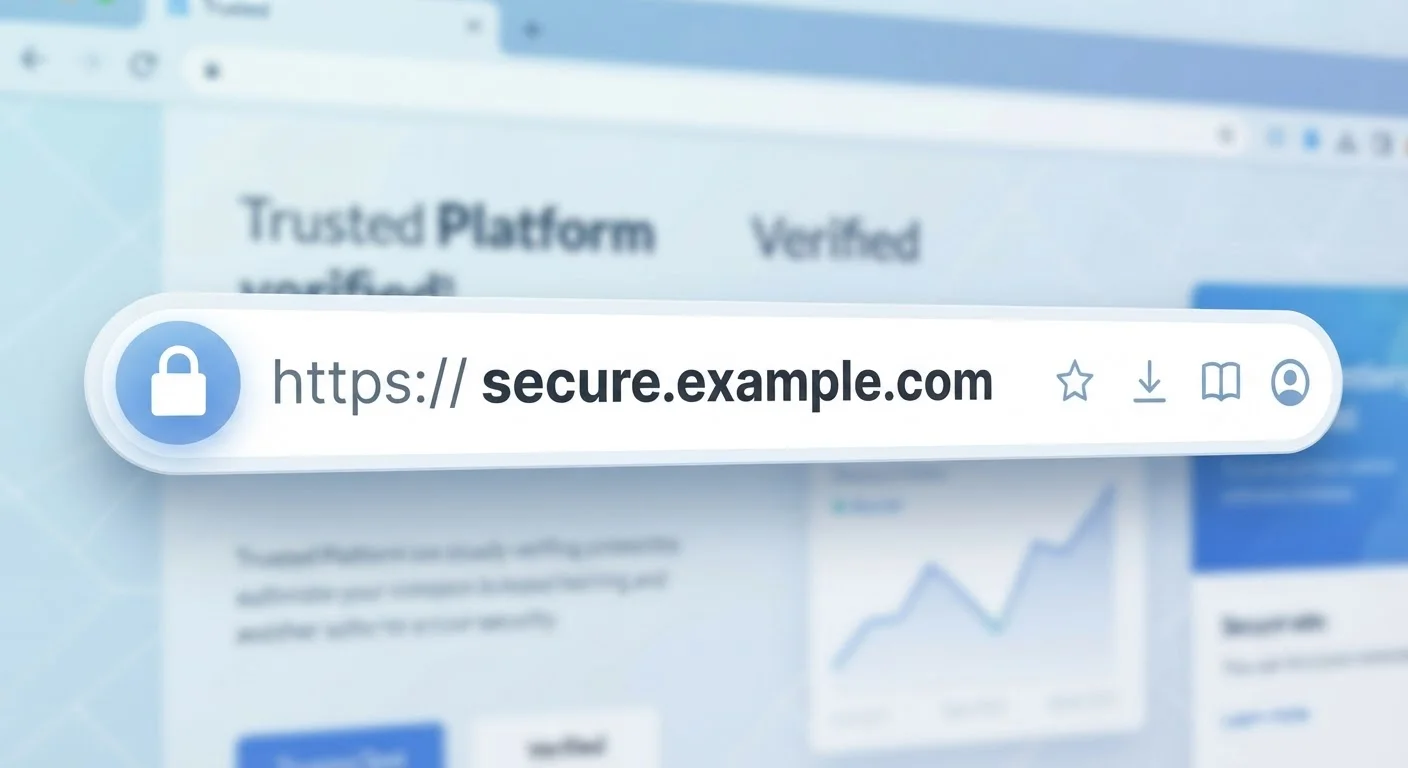
The padlock icon in your browser's address bar is simply a visual indicator that TLS encryption is active for that connection. It appeared as browsers began making HTTPS the default expectation, and HTTP the exception worth flagging. As noted in our guide on browsers and privacy, understanding the tools your browser uses helps you make smarter decisions about your data.
How They Differ: A Side-by-Side Look
The practical differences between HTTP and HTTPS come down to three areas: data protection, browser behavior, and what each protocol can and cannot guarantee.
| Criterion | HTTP | HTTPS |
|---|---|---|
| Data encryption | None — plain text | Yes — TLS encryption |
| Padlock in browser | No — often flagged 'Not Secure' | Yes — padlock displayed |
| Vulnerable to network interception | Yes, relatively easy on shared networks | Much harder — data is encrypted |
| Guarantees site is trustworthy | No | No — encryption only |
| Cost to implement | N/A — no certificate needed | Free certificates widely available |
| Modern browser treatment | Flagged as insecure | Treated as standard |
One often-misunderstood point: HTTPS protects data in transit — meaning between your device and the website's server. It does not control what the website does with your data once it arrives. The site owner still receives everything you submit.
The Padlock Does Not Mean the Site Is Safe
This is the most important nuance most people miss. Because obtaining an HTTPS certificate has become free and straightforward, anyone can run an HTTPS site — including scammers operating phishing pages designed to steal your credentials.
Studies from cybersecurity researchers have consistently shown that a significant portion of phishing sites use HTTPS. The padlock tells you the connection is encrypted; it says nothing about the intentions or legitimacy of the website on the other end.
The Padlock and Phishing Sites
A padlock icon confirms that your connection to a site is encrypted — it does not verify that the site is legitimate. Phishing websites regularly use HTTPS to appear credible. Always double-check the full domain name in your address bar, not just the presence of a padlock, before entering any personal information.
So what should you look for beyond the padlock? Scrutinize the domain name closely — fraudulent sites often use lookalike addresses (e.g., "paypa1.com" instead of "paypal.com"). Check for contact information, look for independent reviews, and be skeptical of pages you arrived at via an unexpected link or email.
For a broader picture of habits that protect you online, see our guide to lasting digital security habits.
When HTTPS Matters Most — and Its Limits
HTTPS is most valuable in specific situations: logging into an account, completing a purchase, filling out a form with personal details, or using any site over a shared or public network. In these cases, the encryption it provides is a meaningful safeguard against network-level interception — where someone on the same Wi-Fi network could otherwise monitor unencrypted traffic.
On public Wi-Fi especially, HTTP sites carry real risk. Our digital security on the road guide covers this scenario in more depth.
However, HTTPS has clear limits. It does not:
- Prevent the website from tracking your behavior via cookies or analytics tools
- Stop malware that is already installed on your device from capturing keystrokes
- Protect you if you reuse weak passwords — a separate concern covered in our overview of password managers
- Shield your browsing from your internet service provider, who can still see which domains you visit
Understanding what HTTPS does — and doesn't do — puts you in a much stronger position than simply trusting any site displaying a padlock.