

Key Takeaways
What Two-Factor Authentication Actually Does
Two-factor authentication — commonly shortened to 2FA — means a service asks you to prove your identity in two separate ways before granting access. Typically that's something you know (your password) plus something you have (a code sent to your phone or generated by an app).
If a thief steals your password, they still can't get in without that second factor. That single addition stops the vast majority of automated account takeover attempts. For a deeper look at how each 2FA method compares, see our guide to why a password alone isn't enough.
2FA works alongside — not instead of — good password habits. If you're not already using unique passwords for each account, pairing 2FA with a password manager is a strong combination.
Enable 2FA on Your Most Critical Accounts First
Start with email, banking, and any account linked to your payment information. Your email account is especially high-value — if someone gains access to it, they can reset passwords across your other accounts. Work outward from there to social media and other services.
What You'll Need Before You Start
What you will need
Authenticator App (e.g., Google Authenticator, Authy)
Generates time-sensitive, six-digit codes on your phone that serve as your second verification factor.
Password Manager
Stores backup codes and strong unique passwords securely so you don't lose access during account recovery.
Your Account's Security Settings Page
The location within each app or website where you find and enable two-factor authentication options.
How to Enable Two-Factor Authentication
The steps below apply broadly across most major apps and websites. Menus and exact labels differ by service, but the underlying process is consistent: find security settings, choose a second-factor method, link your device, and verify the connection.
Download an Authenticator App
Before touching any account settings, install an authenticator app on your smartphone. These apps generate time-limited, six-digit codes that act as your second factor. Look for well-known options in your phone's official app store — search for terms like "authenticator app" to find them.
If you'd rather not use an app, most services also offer SMS text-message codes as an alternative, though an authenticator app is the more secure choice.
Navigate to Security Settings in Your App
Open the account you want to secure — whether that's your email provider, social media platform, or banking app. Look for a Settings or Account menu, then find a section labeled Security, Privacy, or Sign-in options.
The exact label varies by service. Common pathways include:
- Google: myaccount.google.com → Security → 2-Step Verification
- Apple ID: Settings → your name → Password & Security → Two-Factor Authentication
- Facebook/Instagram: Settings → Security → Two-Factor Authentication
Choose Your Second-Factor Method
Most services present a choice of second-factor methods. Select Authenticator App for the strongest protection. If the option isn't available, SMS / Text Message is a reasonable starting point.
Once you choose authenticator app, the service will display a QR code on screen — a square barcode pattern your phone's camera will scan.
Scan the QR Code with Your Authenticator App
Open your authenticator app and tap the option to add a new account (usually a + button). Choose Scan QR code, then point your phone's camera at the QR code displayed on the service's website or app.
Within seconds, a six-digit code for that account will appear in your authenticator app, refreshing every 30 seconds. This confirms the link is working.
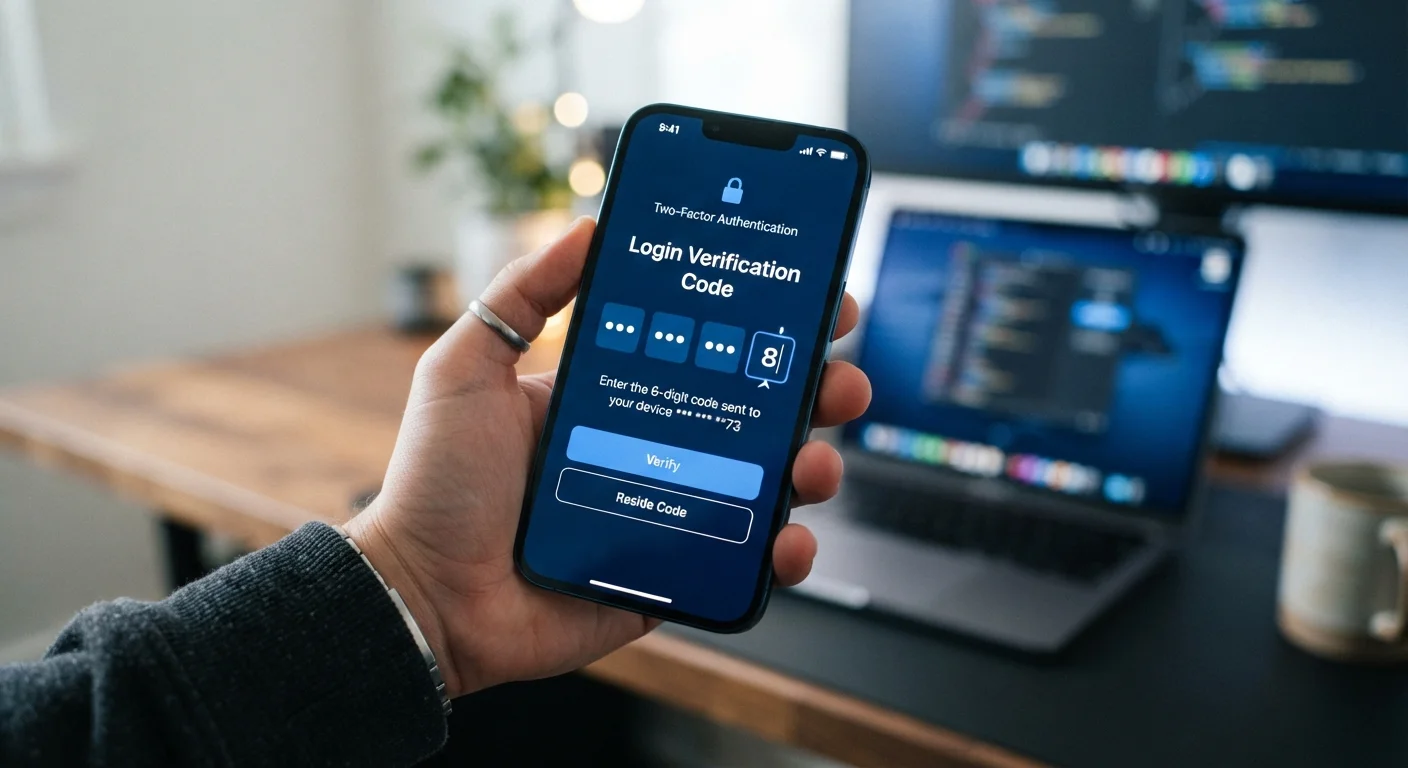
Enter the Verification Code to Confirm Setup
The service will ask you to enter the current six-digit code from your authenticator app to confirm everything is connected correctly. Type the code shown in your app and submit it before it refreshes.
A confirmation screen means 2FA is now active on that account. Future logins will require both your password and a fresh code from the app.
Save Your Backup Codes
Immediately after enabling 2FA, look for an option to generate or view backup codes. These are single-use codes you can enter instead of your authenticator code if your phone is unavailable.
Download or write down these codes and store them somewhere you'll find them later — a printed copy in a drawer, or saved inside a password manager.
Save Your Backup Codes Immediately
When you enable 2FA, most services generate one-time backup codes you can use if you lose access to your phone. Store these codes somewhere secure — a printed copy in a safe place or inside a password manager. If you skip this step and lose your second-factor device, regaining account access can be a lengthy, difficult process.
Troubleshooting and Common Questions
The code I enter says it's invalid
Authenticator codes are time-sensitive and expire every 30 seconds. Make sure your phone's date and time are set to update automatically — a clock that's even slightly off can cause code mismatches. On most phones, this is found under Settings → General → Date & Time → Set Automatically.
I got a new phone — how do I move my authenticator?
Most authenticator apps include a transfer or export function specifically for this situation. Complete the transfer before wiping your old device. If you've already switched phones without transferring, use your backup codes to sign in and then re-enroll your new device.
A service doesn't offer 2FA at all
Some smaller services haven't built 2FA yet. In that case, use a strong, unique password and consider whether storing sensitive information on that platform is worth the risk. Review our article on what to check before downloading any app for guidance on assessing a service's overall trustworthiness.
SMS Codes Are Convenient But Not Foolproof
Text-message verification codes are better than no 2FA at all, but they can be intercepted through a technique called SIM swapping, where a bad actor convinces your carrier to transfer your phone number. For accounts that hold sensitive financial or personal data, consider using an authenticator app instead of SMS for stronger protection.