

Key Takeaways
Start here
What Two-Factor Authentication Actually Is
Next
The Most Common 2FA Methods Explained
Then
When and Where You Should Turn It On
Finally
How to Set Up 2FA Without Getting Locked Out
What Two-Factor Authentication Actually Is
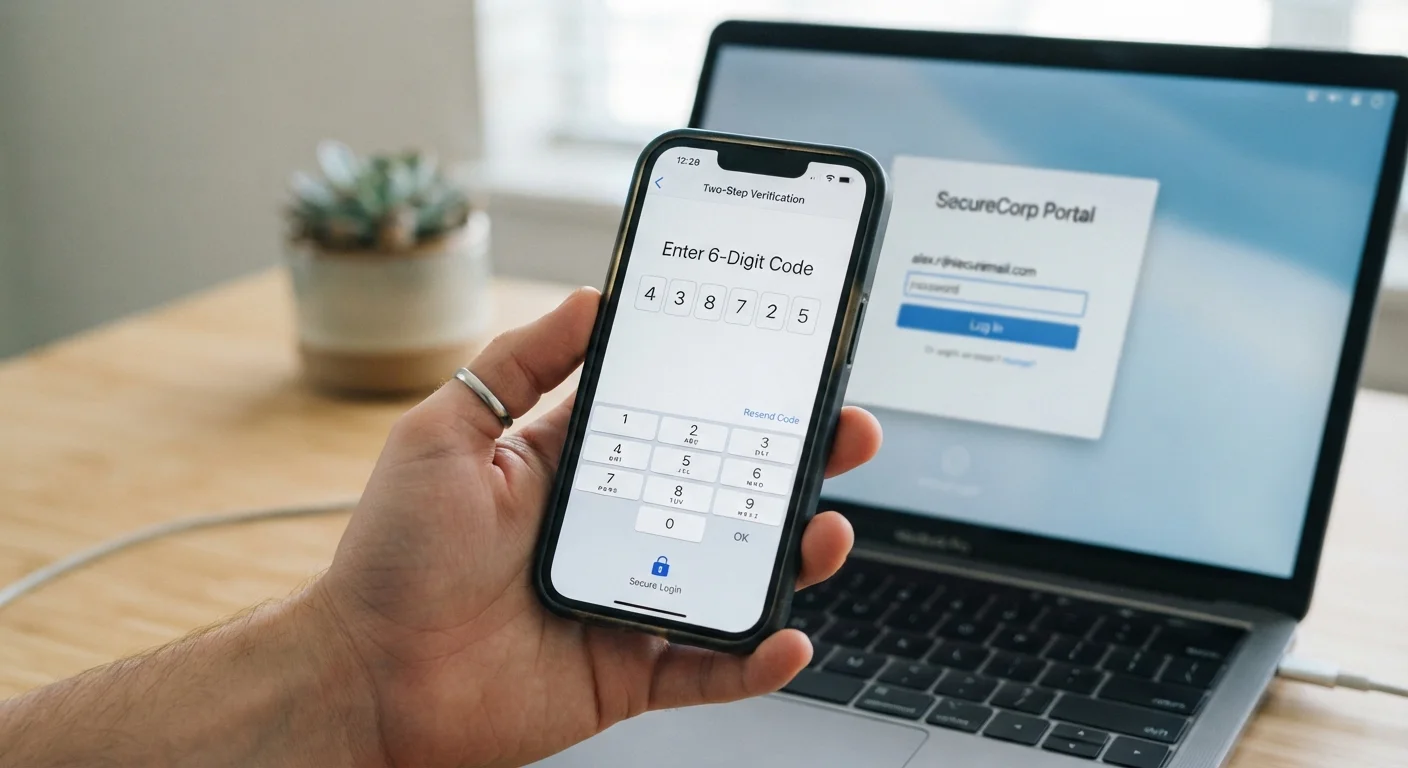
A password is something you know. Two-factor authentication (2FA) adds something you have — usually your phone — or something you are, like a fingerprint. The idea is that an attacker who steals your password still faces a second barrier they're unlikely to clear.
Think of it like a safe-deposit box at a bank: you need your own key and the banker's key to open it. One key alone gets you nowhere. 2FA works on the same principle for your online accounts.
Two-factor authentication (2FA)
A login process that requires two separate proofs of identity — typically your password plus a code or device — before granting access to an account.
Authenticator app
A smartphone app that generates temporary, time-limited codes used as the second factor during login, without relying on text messages.
SIM swapping
An attack where a criminal convinces a phone carrier to transfer a victim's phone number to a device they control, allowing them to receive the victim's SMS verification codes.
Backup codes
One-time use codes provided by a service when you set up 2FA, intended to restore access if you lose your primary second-factor device.
Phishing
A scam where attackers send fake emails or create fake websites designed to trick you into entering your login credentials.
Passwords get exposed more often than most people realize. Data breaches routinely release millions of credentials online. Phishing emails trick people into entering passwords on fake sites. Once your password is out there, a second factor is the only thing standing between an attacker and your account. For broader habits that reinforce this kind of protection, see our guide to lasting online safety habits.
The Most Common 2FA Methods Explained
Not all second factors are equal. Here's how the main types work and where each stands on the security spectrum.
- SMS text codes: The service texts a six-digit code to your phone number. Easy to set up, widely supported, but vulnerable to SIM-swapping attacks where criminals redirect your number to their own device.
- Authenticator apps: Apps like Google Authenticator or similar tools generate time-sensitive codes on your device without sending anything over the network. Because the code lives only on your phone and expires every 30 seconds, it's far harder to intercept.
- Push notifications: The service sends an approval request directly to an app on your phone. You tap "Approve" or "Deny." Convenient, but watch out for "push fatigue" — attackers sometimes flood users with requests hoping someone taps Approve by accident.
- Hardware security keys: A small USB or NFC device you plug in or tap against your phone. Considered the strongest consumer option because it requires physical possession and is resistant to phishing. Common in high-security professional environments.
- Biometrics: Fingerprint or face recognition used as the second step, usually on mobile apps. Convenient and difficult to replicate remotely, though availability depends on the service and device.
Start With Your Email Account
If you only enable 2FA on one account, make it your primary email. Because password reset links for other services are sent to your inbox, securing your email effectively protects a large portion of your digital life. Once that's done, work down the list to financial and social accounts.
Pairing 2FA with a strong, unique password for each account gives you a formidable combination. Our explainer on password managers covers how to handle unique passwords without memorizing dozens of them.
When and Where You Should Turn It On
You don't have to enable 2FA on every account you've ever created. Prioritize by consequence: ask yourself what an attacker could do if they got in.
- Primary email account — This is the skeleton key to your digital life. Password reset links for nearly every other service go to your inbox, making it the highest-value target.
- Financial accounts — Banks, investment platforms, and payment services hold real money. Most reputable institutions now offer or require 2FA.
- Social media — Compromised accounts get used for scams targeting your contacts or to impersonate you publicly.
- Cloud storage and work tools — These may hold sensitive documents, photos, or business communications.
- Anywhere payment details are saved — Online retailers and subscription services where a card is on file warrant the extra step.
If you travel frequently and rely on public Wi-Fi, 2FA becomes even more important. Our guide to digital security while traveling walks through the specific risks that come with being on the road.
How to Set Up 2FA Without Getting Locked Out
The most common reason people resist 2FA is fear of losing access to their own accounts. A little preparation eliminates that risk.
Before you enable 2FA
- Make sure your recovery email and phone number on the account are current and accessible.
- Download an authenticator app to your phone if you plan to use that method.
During setup
- Most services walk you through the process in their security or privacy settings — look for "Two-step verification" or "Login security."
- When backup codes are offered, save them. Print them or store them in a secure offline location. These one-time codes let you regain access if you lose your phone.
After enabling 2FA
- Test the login flow from a different browser or device to confirm everything works before you close the session.
- If you set up an authenticator app, consider noting which accounts are tied to it — this matters if you ever switch phones.
Setting up 2FA takes five to ten minutes per account. That's a small investment for protection that works around the clock, even while you sleep.