

Key Takeaways
App Permissions
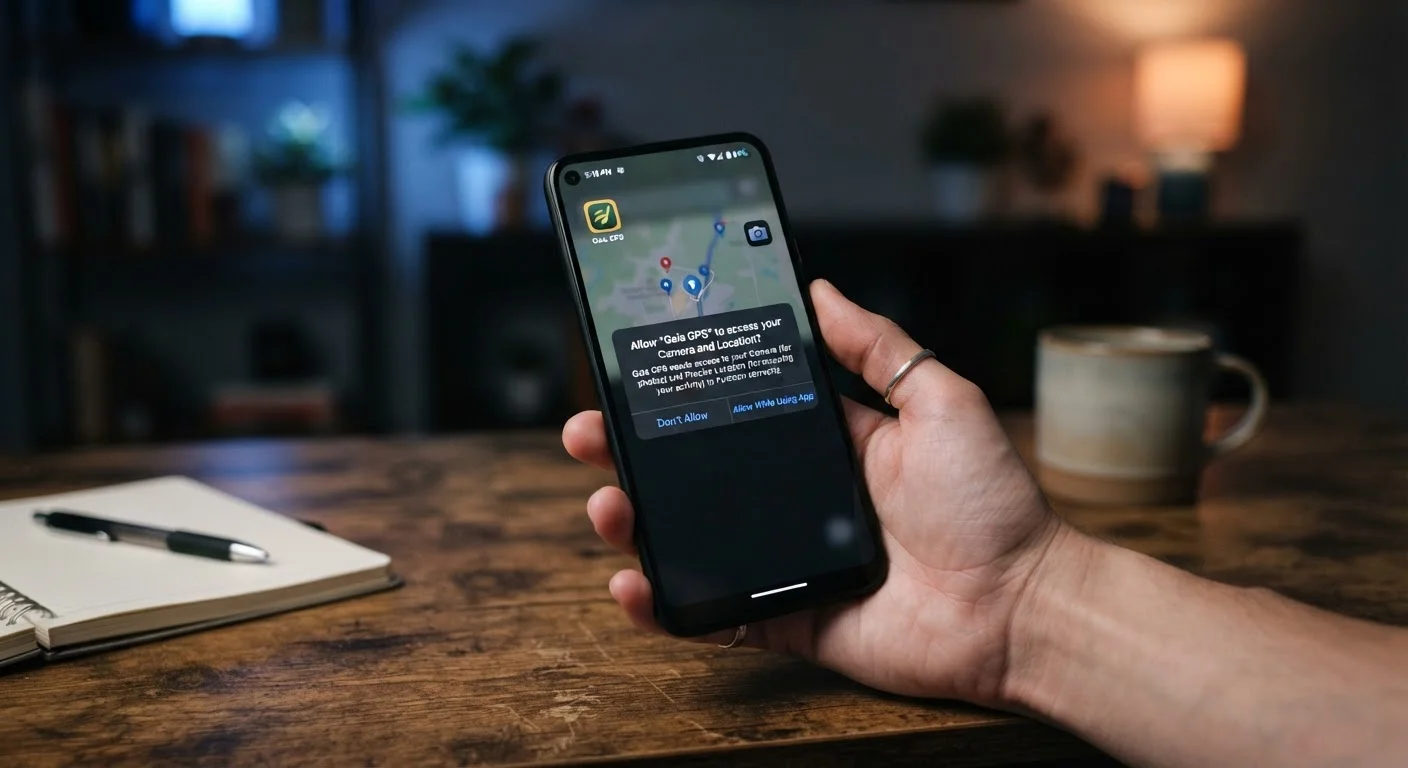
App permissions are requests an application makes to access specific features or data on your device — such as your camera, microphone, contacts, or location. When you tap 'Allow' or 'Deny,' you're deciding what information and hardware that app can reach. These settings can usually be changed at any time through your phone's settings menu.
On both Android and iOS, permissions are enforced at the operating system level, meaning an app cannot access a restricted resource without the OS explicitly granting it — regardless of what the app's code attempts to do.
Why Apps Ask for Access in the First Place
When you install a new app and it immediately asks to access your microphone or location, it can feel intrusive — even suspicious. But many of these requests are completely legitimate. Apps are built to integrate with your device's hardware and data to deliver their core features, and the permission system is the gatekeeper that controls what they can and can't reach.
Think of permissions as a set of locked doors inside your phone. Each door leads to something valuable: your photos, your precise location, your stored contacts. The app knocks; you decide whether to open it. Your phone's operating system enforces that decision — an app cannot sneak past a denied permission at the system level.
The problem isn't that permissions exist. It's that most people tap 'Allow' reflexively, without knowing what they're actually agreeing to. Understanding the most common permission types makes that split-second decision much easier.
The Most Common Permissions — and What They Actually Do
Here's a plain-language breakdown of the permissions you'll encounter most often:
- Location: Lets the app know where you are, either precisely (GPS) or approximately (based on nearby Wi-Fi or cell towers). Navigation and weather apps clearly need this. A recipe app probably doesn't.
- Camera: Allows the app to activate your camera and capture photos or video. Video call apps, QR code scanners, and photo editors have obvious, legitimate uses.
- Microphone: Gives the app the ability to record audio. Voice assistants, podcasting apps, and video chat tools need this. A to-do list app does not.
- Contacts: Exposes your stored address book. Messaging apps often use this to help you find friends already on the platform. But this also means your contacts' names and phone numbers leave your device.
- Photos / Media: Lets the app read or write to your photo library. An editing app needs read access; a camera app may need write access. Some apps ask for full library access when they only need to read one image.
- Notifications: Allows the app to send you alerts. This isn't a data permission, but it affects how much the app can demand your attention.
- Bluetooth: Needed for apps that pair with external devices, like wireless headphones or fitness trackers. Less obviously, some apps use Bluetooth to track your physical location indoors.
Start with Your Most-Used Apps
You don't need to audit every app at once. Begin with the five or six apps you use daily — those are the ones most likely to be actively using any permissions you've granted. Revoking unnecessary access from frequently used apps has the greatest practical impact on your privacy.
For deeper context on how apps consume your phone's resources beyond permissions, see what your smartphone is doing in the background.
The Red Flags Worth Pausing For
Most legitimate apps request only what they genuinely need. The clearest warning sign is a mismatch between an app's stated purpose and what it's asking to access. A barcode scanner asking for your contacts, or a wallpaper app wanting microphone access, should prompt a pause before you tap Allow.
A second red flag is the timing of the request. Reputable apps typically explain why they need a permission before asking — often with a brief prompt that appears just before the system dialog. If a request appears with no context or explanation, that's worth noting.
Before downloading anything new, check the app's permissions list and privacy policy in the app store — both Android and iOS display this information before you install.
How to Review and Adjust Permissions You've Already Granted
You don't have to accept every decision you made at install time. Both major mobile operating systems make it straightforward to audit and change permissions:
- On iPhone: Go to Settings → scroll to the app name → tap it to see every permission it holds and toggle each one independently.
- On Android: Go to Settings → Apps → select the app → tap Permissions to see the full list.
You can also approach it from the permission side — viewing which apps have access to your location or microphone all at once. On iPhone, this is under Settings → Privacy & Security. On Android, look for Permission Manager within the Privacy settings.
While you're auditing permissions, it's also worth reviewing other default app settings that often go unchecked — many have privacy implications that go beyond permissions alone.
If you notice apps you rarely use still holding sensitive permissions like location or microphone, it's generally safe to revoke them. The app will prompt you again if it ever genuinely needs that access back.